
My Trading Models explained
My Trading Models explained
The My Trading Models page is your private workspace for Trading Models you have created and decided to keep.
Unlike Favorites, which is mainly a shortlist of existing live models you want to revisit, My Trading Models is where your own builder results are stored after a successful backtest and save step.
This workspace is currently available in Pro and Pro+. If your plan does not include custom Trading Models, or if you have reached your saved-model limit, the page shows an upgrade/capacity panel instead of the create flow.
What this page is for
Use My Trading Models to:
- keep your own model ideas separate from Favorites
- save positive backtest results for later review
- reopen models that were optionally added to the live population
- remove saved models you no longer want to keep
- filter your saved library by symbol or entry logic once it grows
What you see on this page
The page contains:
- a page header with the Create Trading Model entry point
- the saved model list, using the same Trading Model card language as the rest of darwintIQ
- filtering on the saved list by symbol and entry logic when you have multiple models
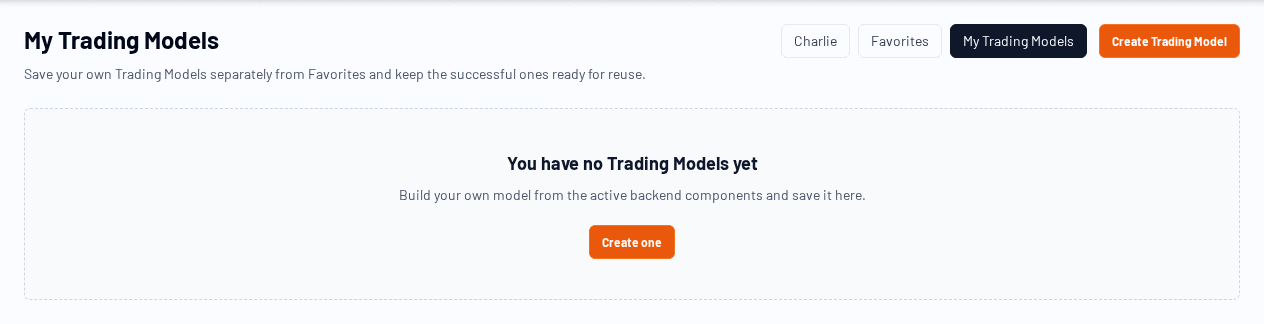
- an empty state the first time you arrive here
- an access/capacity panel when your plan cannot create more custom models
If a saved model has a linked population model behind it, the card can also open the regular model detail page.
Access & limits
Current saved-model access works like this:
- Single Symbol: no custom Trading Models included
- Pro: create and save up to 20 Trading Models
- Pro+: create and save up to 100 Trading Models
When you hit the current plan limit, the page stays available for review and deletion, but the create action is replaced by upgrade guidance until capacity is freed or the plan changes.
Empty state
If you have not saved any Trading Models yet, the page shows a clear empty state and points you directly to Create Trading Model.
That empty state is intentional. It means the workspace is ready, but you have not yet completed and saved a builder run.
How models arrive here
The normal workflow is:
- open Create Trading Model
- configure or mutate a model setup
- run a backtest
- save the result if the fitness is positive
At that point the saved result appears in My Trading Models.
Removing a saved model
Each saved model card includes a remove action.
When you remove a model:
- a confirmation dialog opens
- you confirm the deletion
- the model disappears from the saved list
This affects your personal saved workspace, not the general symbol dashboard.